Landscape to Portrait Converter

Turn a wide landscape photo into a portrait with AI, rebuilt for the new frame.

Upload a landscape photo (up to 10 at a time)JPG, PNG, WebP
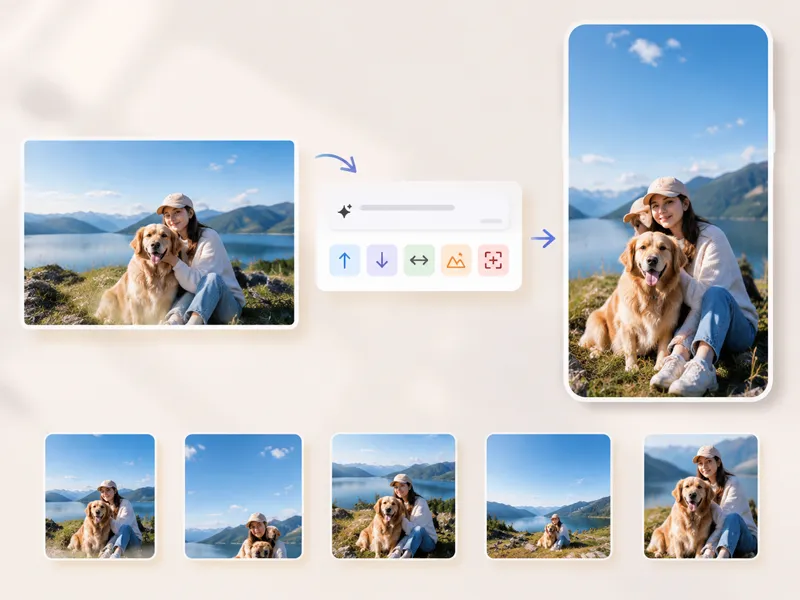
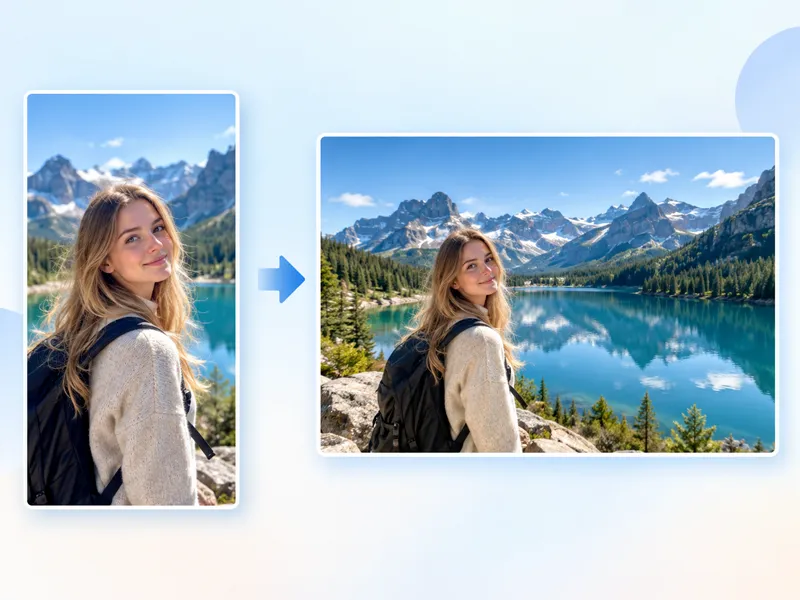
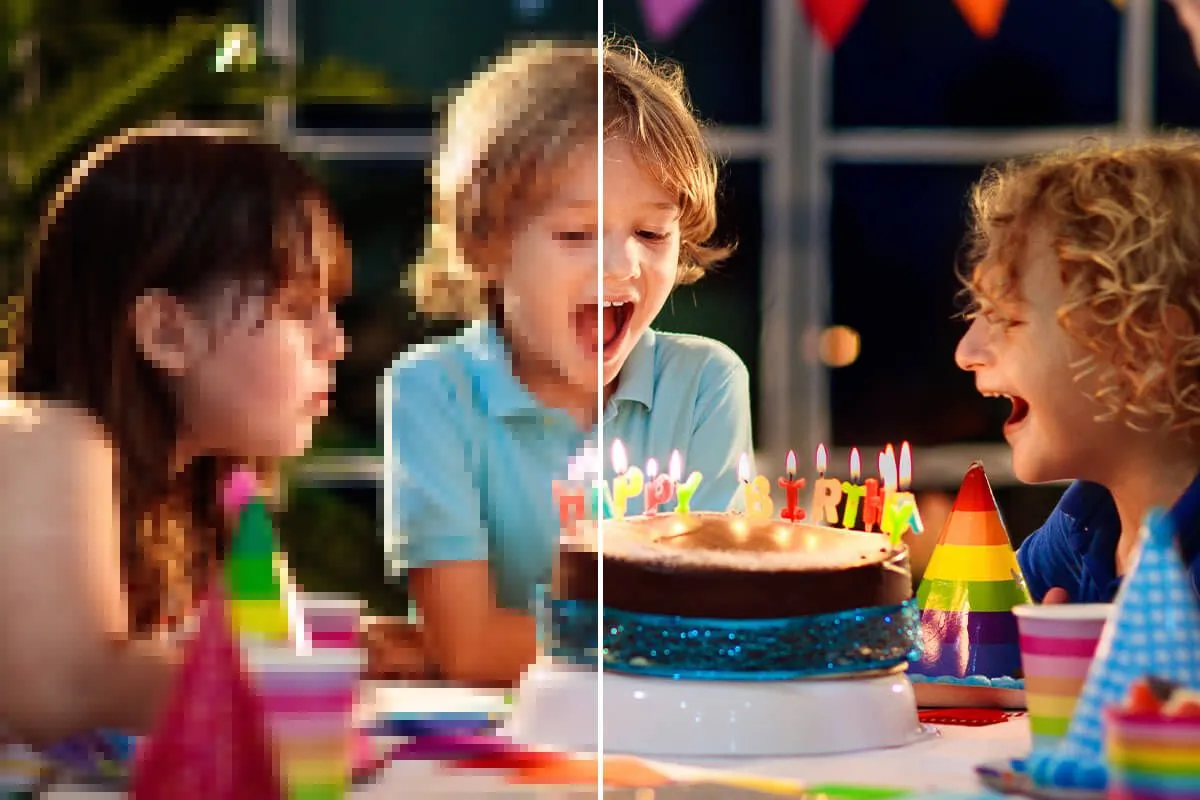
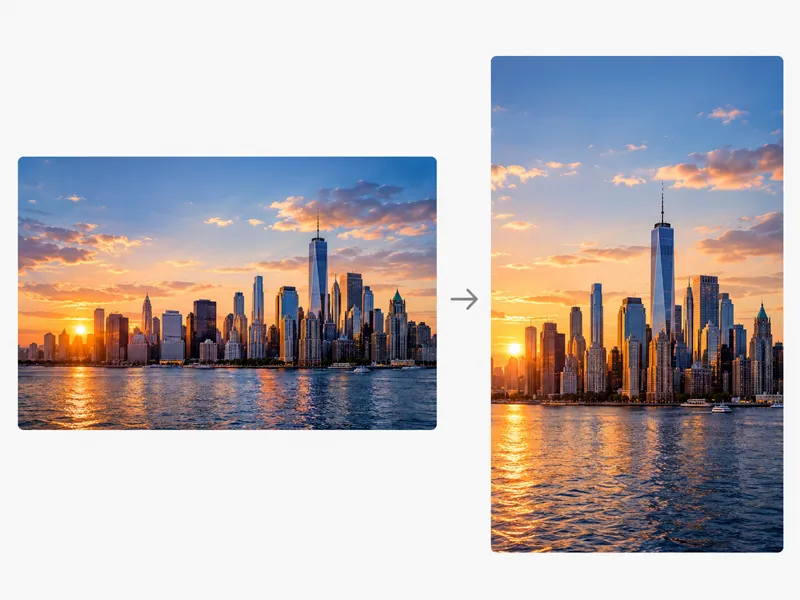
Landscape photo rebuilt as a vertical portrait composition
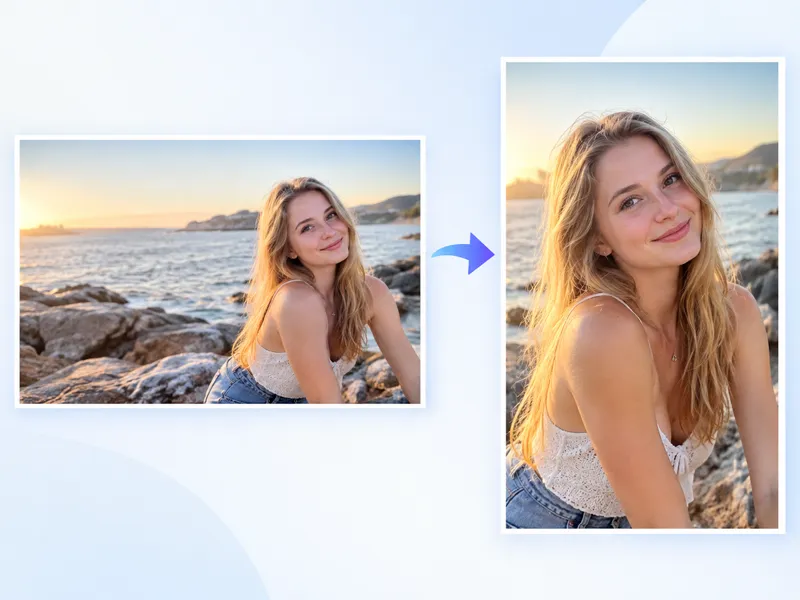
Portrait conversion example
How it works

How to use the landscape to portrait converter

Three short steps. Upload the wide photo, pick a portrait scene, then generate.

1

Upload your landscape image

Add a horizontal photo. Clear subjects and a readable background usually convert better.

2

Choose a portrait scene

Select 9:16, 4:5, 3:4, or a preset for where you will post or print the image.

3

Generate your portrait image

Click Convert to Portrait. The AI extends the scene and rebuilds the composition for the taller frame.

Key features

What a Landscape to Portrait Converter does

It does not shrink a wide photo. It rebuilds the shot so a taller frame still looks like the original scene.

01

AI-powered landscape to portrait conversion

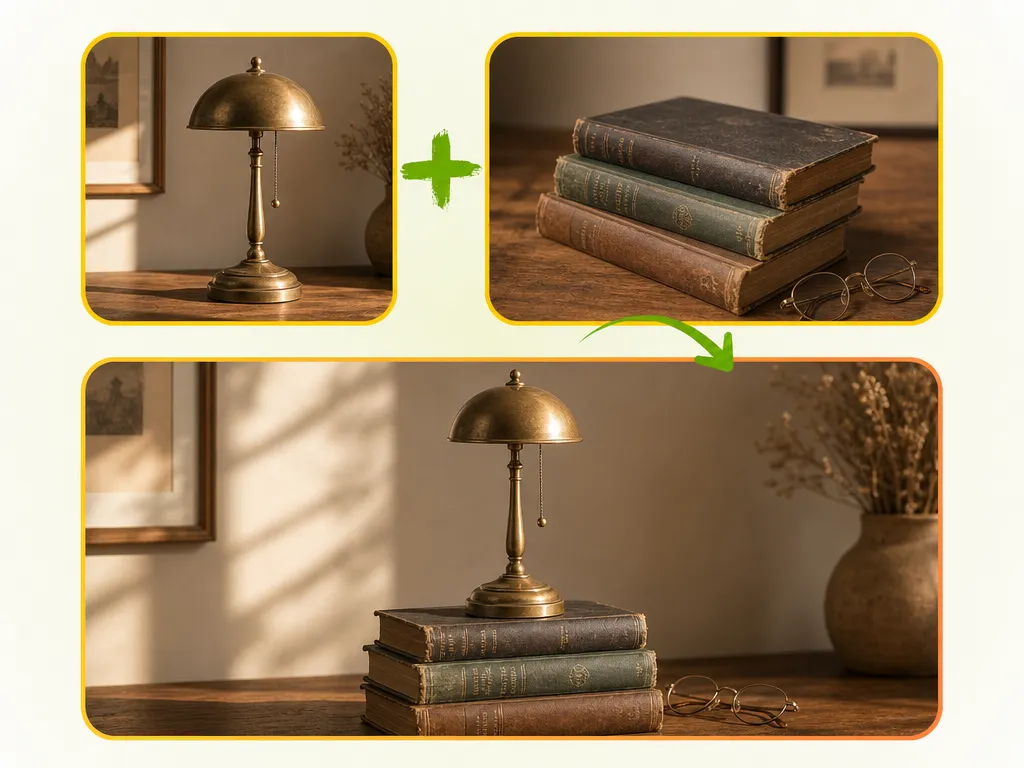
The AI reads the subject, edges, and surrounding space, then places that content in a taller composition. You get a new portrait layout, not a stretched file or a squeezed preview.

02

Expand instead of crop

A hard crop to 9:16 often cuts people at the edge or chops product packaging. This tool keeps those important areas and adds scene around them so the portrait frame still feels complete.

03

Natural background extension

New pixels follow the colors, textures, lighting, and perspective already in the photo. The added area should look like a continuation of the original image, not a blank border.

04

Batch convert multiple photos

Upload several landscape photos at once, up to 10. Each image is converted in turn with the same scene and prompt, so a set of shots does not need a new start for every file.

05

Scene-specific presets

Social, Instagram, Stories, portrait, product, and wallpaper presets each send a different prompt. Skip a long instruction unless you want one.

06

Custom prompt control

Edit the prompt to change composition, background, subject placement, negative space, atmosphere, or visual style. Presets are a starting point, not a fixed look.

Why NanoMaker

Why convert landscape to portrait with NanoMaker

Cropping is fast, but it throws away parts of the shot. This converter keeps more of what you already photographed.

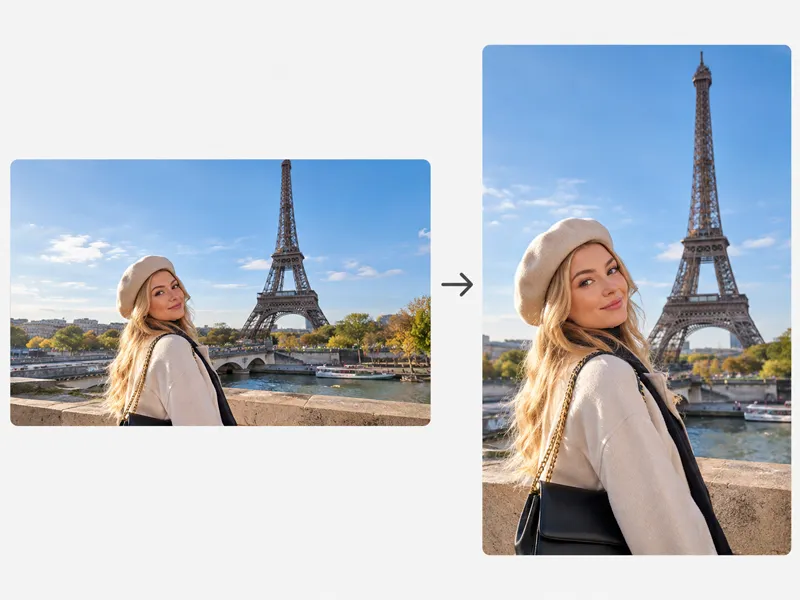
Landscape photo kept intact when rebuilt as a taller portrait frame

Without cropping

Crop a landscape photo to 9:16 and the left and right sides usually disappear. A person near the edge can get cut off. A product that fills the width can lose packaging or look cramped. NanoMaker uses AI to add extra scene for the new portrait frame, so more of the original shot can stay visible.

Convert landscape to portrait
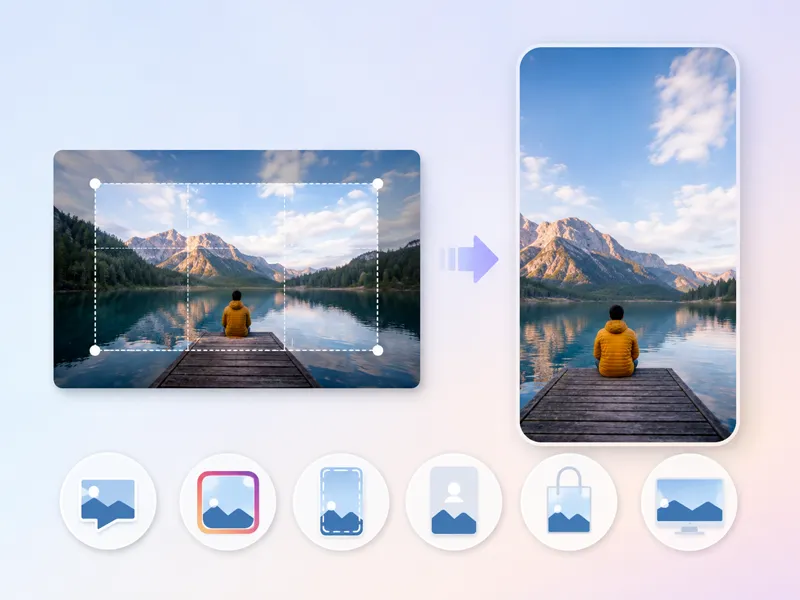
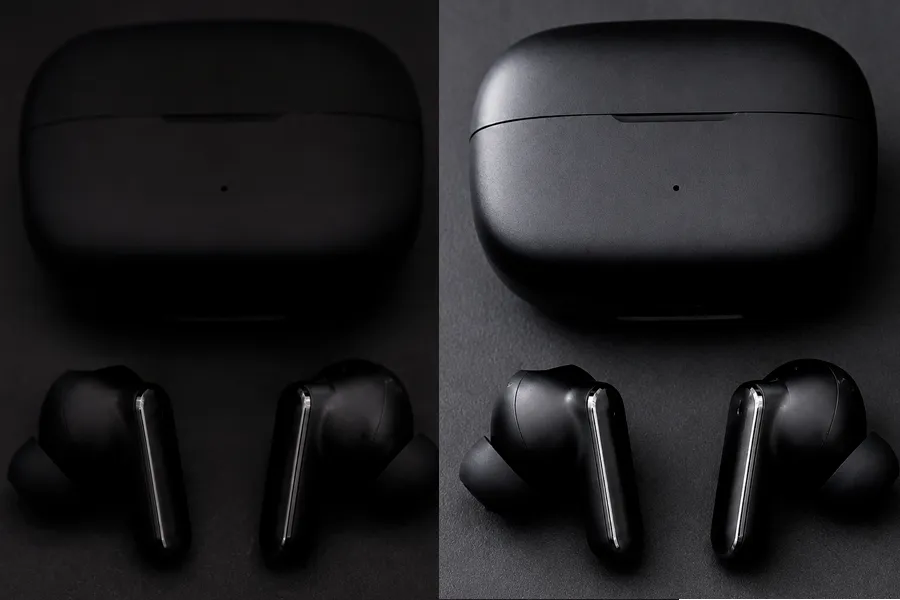
Natural background extension filling extra portrait height

Natural background filling

The extra area is built from the colors, textures, lighting, and surrounding details already in your photo. Newly added regions should look like a continuation of the original image, not an empty border.

Convert landscape to portrait

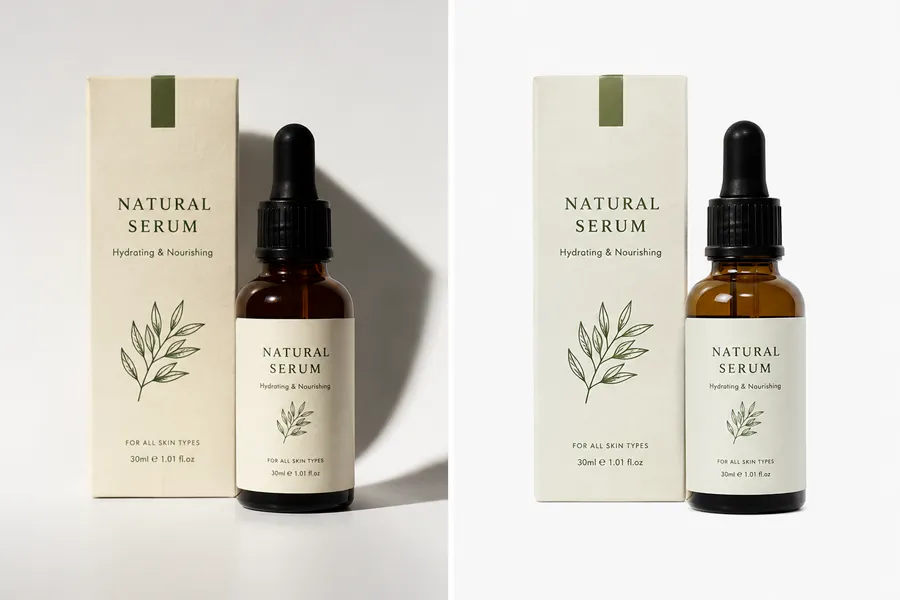
Portrait scene presets for social, product, and wallpaper uses

Scene presets for different uses

When you convert a landscape photo, pick a scene that matches where it will be used. Social, Instagram, Stories, portrait, product, and wallpaper each send a different prompt. Choose the one that fits your need, or keep Default.

Convert landscape to portrait

Portrait image ready for social posts, mobile screens, and campaigns

High-resolution output for posts and print

Use the results for social posts, mobile screens, websites, product shots, posters, and campaigns. Resolution follows the generator setting you pick, such as 1K, 2K, or 4K.

Convert landscape to portrait

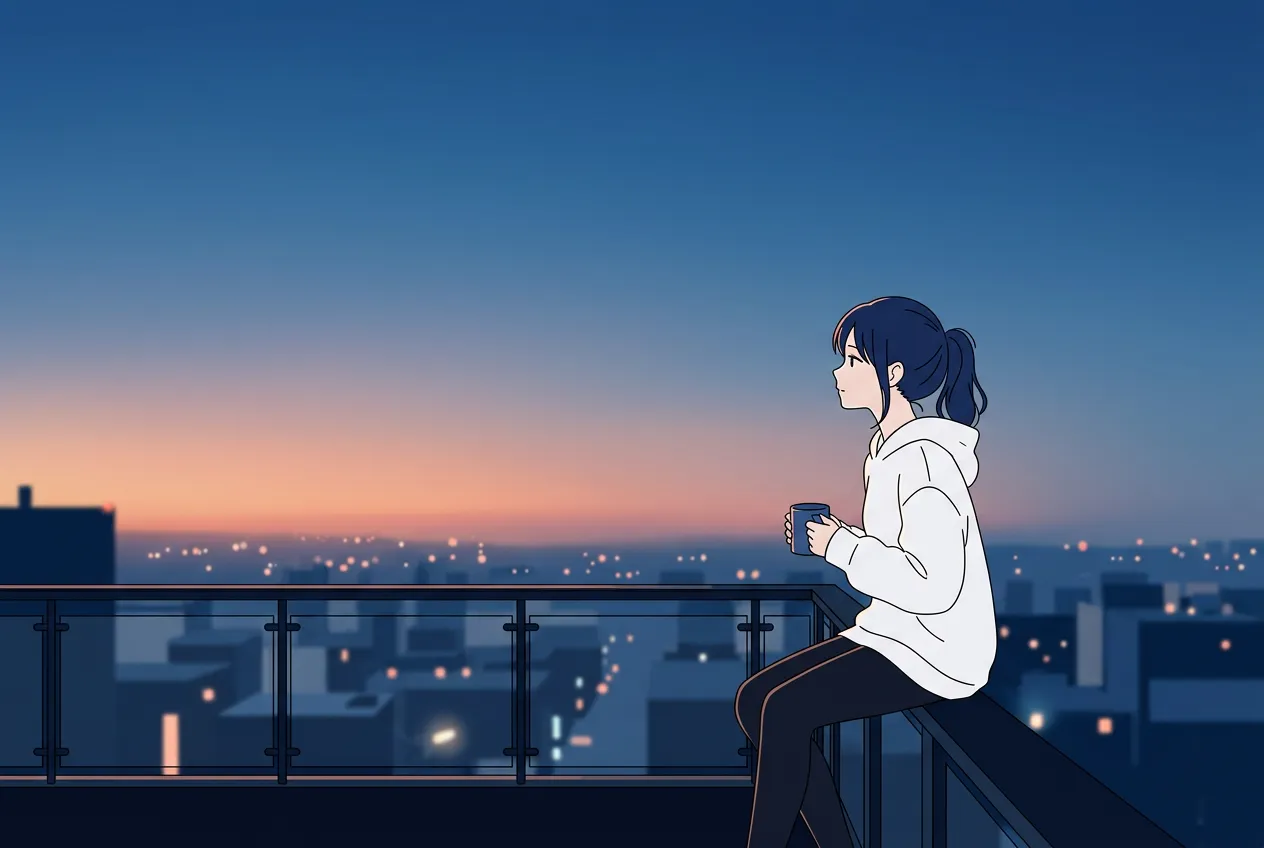
Portrait composition adjusted with a custom prompt

Custom prompt control

A preset is the fastest way in. If you want something more specific, edit the prompt. Ask to move the subject a little higher, leave space for text, continue the original room, extend the sky, or keep a product centered.

Convert landscape to portrait

Who it is for

Who needs a Landscape to Portrait Converter?

Most people already have wide photos. The platforms they publish on often want a taller frame.

01

Social media creators

Cameras and phones still capture a lot of landscape images, while Instagram, Stories, and Reels expect a taller portrait format. Convert the shot you already have instead of cropping it down to a thin strip.

02

Content creators

YouTube, short video, and social covers often need different picture ratios from the same source. Prepare a vertical version without a second shoot.

03

E-commerce sellers

Product photography is frequently shot in a wide layout. Product pages, ads, and mobile listings may need a taller portrait layout so the item still reads clearly on a phone.

04

Marketers and advertisers

Ad platforms ask for different creative dimensions. One landscape original can become several portrait versions for stories, feeds, and mobile placements.

05

Photographers

Take an existing landscape composition and produce another frame from it. Useful when a client later asks for a vertical crop you never shot.

06

Designers

Prepare poster art, campaign visuals, mobile creatives, and other vertical assets from a landscape source without rebuilding the whole layout from scratch.

Crop vs AI

Why AI conversion is different from simple cropping

Cropping cuts the photo down. A Landscape to Portrait Converter keeps the important parts and fills the new frame.

What you getTraditional cropNanoMaker AI conversion
Original scene
Removes part of the original image and often cuts people or products.
Keeps more of the original scene and generates extra visual content for the taller frame.
Visible environment
Leaves only the center of the photo.
Fits the composition to the new portrait ratio while keeping the setting.
Control
You only choose where the crop window sits.
Can be guided by a prompt for placement, space, and background.
Use cases
One crop and one ratio.
Works for social, product, wallpaper, poster, and other portrait uses.
Portrait formats

Choose the right portrait format

Pick the ratio for how the image will be shown. You can output 9:16, 4:5, or 3:4.

01

9:16

A common vertical format for Stories, Reels, Shorts, TikTok-style content, and mobile wallpapers. Use it when the image needs to fill a tall phone screen.

02

4:5

A frequent choice for Instagram portrait posts and social feeds that should feel tall without filling a full-screen story.

03

3:4

A natural fit for portrait photography, product images, editorial frames, and digital displays that need a classic taller photo.

Pricing plans for Landscape to Portrait Converter

Choose your plan and get instant access to all premium AI models

50% OFF

Cancel anytime — Unused credits roll overUsage varies by model and generation type.

Save $84

Lite

$7per month

$84 per year billed yearly

4,500 Credits per year

Most Popular
Save $100

Premium

$8.33per month

$100 per year billed yearly

9,600 Credits per year

Save $240

Max

$19.99per month

$240 per year billed yearly

36,000 Credits per year

Free

$0

Pay safely and securely with

  • Mastercard - secure payment method
  • Visa - secure payment method
  • American Express - secure payment method
  • Apple Pay - secure payment method
  • Google Pay - secure payment method
  • JCB - secure payment method
  • Discover - secure payment method
  • UnionPay - secure payment method
  • Click to Pay - secure payment method

Frequently asked questions

How a Landscape to Portrait Converter works, what it keeps, and what you can control.